

WhatsApp MCP server on the official Cloud API
In short: ZapClaw publishes an MCP server so the AI agents your business builds can read and send WhatsApp messages on your own number. It runs on Meta's official Cloud API, every send passes the same guards as the REST API, and the number keeps working in the WhatsApp Business app on your phone.
Beta: the MCP server and AI agent keys are in beta and are not yet available to every account. Access opens gradually, soon.
Create your AI agent key in the dashboard, then add the server to the client your agent runs in.
Create account See the install stepsWhat your agents can do
- Support: read the conversation, check the contact and answer inside the 24-hour window, or leave the rest to your team.
- Bookings and orders: confirm, reschedule or follow up with an approved template, then check whether the message arrived.
- Notifications: send the updates a customer expects, such as a shipping notice or an appointment reminder, from an automation like n8n.
These are your own agents, working for your own customers on your own number.
Your number keeps working in the app
ZapClaw connects the number through WhatsApp Coexistence, so your team keeps answering in the WhatsApp Business app while your agents use the same number through the official API. When someone from your team replies from the app, an autonomous key stops sending to that contact for 24 hours by default, so the agent does not talk over a person.
What you need to connect a number.
Install it in your client
First create an AI agent key (see Creating an AI agent key). The package is @zapclaw/whatsapp-mcp, the remote endpoint is https://mcp.zapclaw.app/mcp and the registry name is app.zapclaw/whatsapp. Keep the key out of shared files: use an environment variable, a key file or a prompt, as in the blocks below.
Claude Code (stdio)
claude mcp add zapclaw --env ZAPCLAW_API_KEY_FILE=/path/to/zapclaw.key -- npx -y @zapclaw/whatsapp-mcp@1
For a project you share, use .mcp.json with an expansion, so the key never lands in the repository.
{
  "mcpServers": {
    "zapclaw": {
      "command": "npx",
      "args": [
        "-y",
        "@zapclaw/whatsapp-mcp@1"
      ],
      "env": {
        "ZAPCLAW_API_KEY": "${ZAPCLAW_API_KEY}"
      }
    }
  }
}
On native Windows the command is cmd and the arguments are ["/c", "npx", "-y", "@zapclaw/whatsapp-mcp@1"].
Claude Code (remote)
claude mcp add --transport http zapclaw https://mcp.zapclaw.app/mcp --header "X-API-Key: ${ZAPCLAW_API_KEY}"
Claude Desktop
Download zapclaw-whatsapp.mcpb from the GitHub releases and open it. Claude Desktop asks for the key as a sensitive field and keeps it. The JSON configuration is the alternative:
{
  "mcpServers": {
    "zapclaw": {
      "command": "npx",
      "args": [
        "-y",
        "@zapclaw/whatsapp-mcp@1"
      ],
      "env": {
        "ZAPCLAW_API_KEY": "${ZAPCLAW_API_KEY}"
      }
    }
  }
}
Cursor
In ~/.cursor/mcp.json, either the local server:
{
  "mcpServers": {
    "zapclaw": {
      "command": "npx",
      "args": [
        "-y",
        "@zapclaw/whatsapp-mcp@1"
      ],
      "env": {
        "ZAPCLAW_API_KEY": "${env:ZAPCLAW_API_KEY}"
      }
    }
  }
}
Or, in .cursor/mcp.json, the remote one:
{
  "mcpServers": {
    "zapclaw": {
      "url": "https://mcp.zapclaw.app/mcp",
      "headers": {
        "X-API-Key": "${env:ZAPCLAW_API_KEY}"
      }
    }
  }
}
VS Code
In .vscode/mcp.json, with a password prompt instead of a stored key:
{
  "inputs": [
    {
      "type": "promptString",
      "id": "zapclaw-key",
      "description": "ZapClaw AI agent key",
      "password": true
    }
  ],
  "servers": {
    "zapclaw": {
      "type": "stdio",
      "command": "npx",
      "args": [
        "-y",
        "@zapclaw/whatsapp-mcp@1"
      ],
      "env": {
        "ZAPCLAW_API_KEY": "${input:zapclaw-key}"
      }
    }
  }
}
Codex
In ~/.codex/config.toml:
[mcp_servers.zapclaw]
command = "npx"
args = ["-y", "@zapclaw/whatsapp-mcp@1"]

[mcp_servers.zapclaw.env]
ZAPCLAW_API_KEY_FILE = "/path/to/zapclaw.key"
n8n
Use the MCP Client Tool node with these settings:
- Transport: HTTP Streamable, endpoint
https://mcp.zapclaw.app/mcp. - Authentication: Header Auth, with the name
X-API-Keyand the value of an autonomous AI agent key. - Tools to Include: Selected, and pick only the tools the agent needs.
The contact's message already reaches your flow through the ZapClaw webhook, so the agent can reply without the conversation tools. The n8n flow, ready to import.
OpenAI Responses API
{
  "type": "mcp",
  "server_label": "zapclaw",
  "server_url": "https://mcp.zapclaw.app/mcp",
  "authorization": "<agent key>",
  "require_approval": "always"
}
The key travels with each request through OpenAI, so use a key limited to the numbers and permissions the agent needs.
Pin the version
Every block above follows the major version, @zapclaw/whatsapp-mcp@1. If you want no automatic updates, use the exact form, @zapclaw/whatsapp-mcp@1.0.0.
Sign in with OAuth (claude.ai, ChatGPT and others)
Clients that sign you in instead of holding a key connect to the same address, https://mcp.zapclaw.app/mcp. You sign in to ZapClaw, approve the connection, choose the numbers and permissions it gets, and can revoke it at any time under Connected apps in the dashboard. No key is copied anywhere.
- claude.ai and Claude Desktop: Settings, Connectors, Add custom connector, enter
https://mcp.zapclaw.app/mcp, then sign in to ZapClaw and approve the connection. - Claude Code: run
claude mcp add --transport http zapclaw https://mcp.zapclaw.app/mcp, then/mcpto sign in. - ChatGPT: Plugins, Add custom MCP server, enter the address and choose OAuth.
- Cursor: in
mcp.json, give the server only"url": "https://mcp.zapclaw.app/mcp", with no headers, and Cursor opens the sign-in. - OpenAI Responses API and Codex: set
authorizationto an OAuth access token that your own application obtained by signing in.
An access token is issued for one resource only, https://mcp.zapclaw.app/mcp, and is refused anywhere else. A connection lasts at most 90 days, after which you sign in again.
A client that registers itself may use redirect addresses that are https URLs, or http URLs on localhost or 127.0.0.1 for apps that run on your computer. Any other address is refused, so a sign-in can only return to the app you approved.
The eleven tools
Each tool needs one permission on the key: reading account details, reading conversations or sending messages.
| Tool | What it does | Permission |
|---|---|---|
zapclaw_whoami | Shows which account the key connects to, with its mode and permissions. | account:read |
whatsapp_list_numbers | Lists the WhatsApp numbers the key may use. | account:read |
whatsapp_list_templates | Lists the approved templates, with the length limit of each variable. | account:read |
whatsapp_check_contact | Checks a contact before sending: whether the 24-hour window is open and whether the contact stopped marketing messages. | account:read |
whatsapp_list_conversations | Lists the recent conversations. | conversations:read |
whatsapp_read_conversation | Reads one conversation. | conversations:read |
whatsapp_send_text | Sends a text message inside the 24-hour window. | messages:send |
whatsapp_send_template | Sends an approved template, also outside the window. | messages:send |
whatsapp_send_media | Sends an image, a document or another file by https link, inside the window. | messages:send |
whatsapp_mark_read | Marks a received message as read. | messages:send |
whatsapp_get_send_status | Checks whether a send was delivered, read or failed. | account:read |
Built so an agent cannot burn your number
The rules below run on the ZapClaw server for every send, from any client, including a plain curl. A client can also ask a person to confirm each send, but nothing depends on it.
- The 24-hour window is checked here. Text and files go out only while the customer's window is open; outside it, only an approved template goes, checked and rendered first.
- Templates stay templates. Each variable has a length limit and no line breaks, so a generic template cannot carry free text.
- One recipient per send. No tool takes a list of numbers.
- Limits on every key, number and client. By default an assistant key sends up to 60 messages an hour and 300 a day, and an autonomous key up to 300 an hour and 3,000 a day. You can change them within ranges ZapClaw sets.
- Opt-outs are respected. A marketing template to a contact who stopped marketing messages is refused before it reaches Meta.
- A person approves the risky sends. A first message to someone who never wrote, marketing outside the window and a send after the agent read other conversations wait for approval (assistant keys) or are refused (autonomous keys).
- Other contacts stay private. If a key listed or read other conversations in the last 15 minutes, a send to a different contact is held or refused.
- The agent yields to your team. After someone replies from the WhatsApp Business app, an autonomous key pauses on that contact.
- The number's health is watched. When its quality rating drops, cold outreach and marketing stop, and at the lowest rating only replies inside the window go out.
- You can stop everything. Revoke a key and it stops at once, or use Pause AI agent sends for the whole account. A dry run key lets you try the server with no risk, because it sends nothing.
How approvals work
When a rule asks for a person, the message is not sent. The tool answers that the send is held and gives an approval link and a short code. Open the approval page in the dashboard, read the whole message, the recipient, the number and the reasons, and choose Approve and send or Reject.
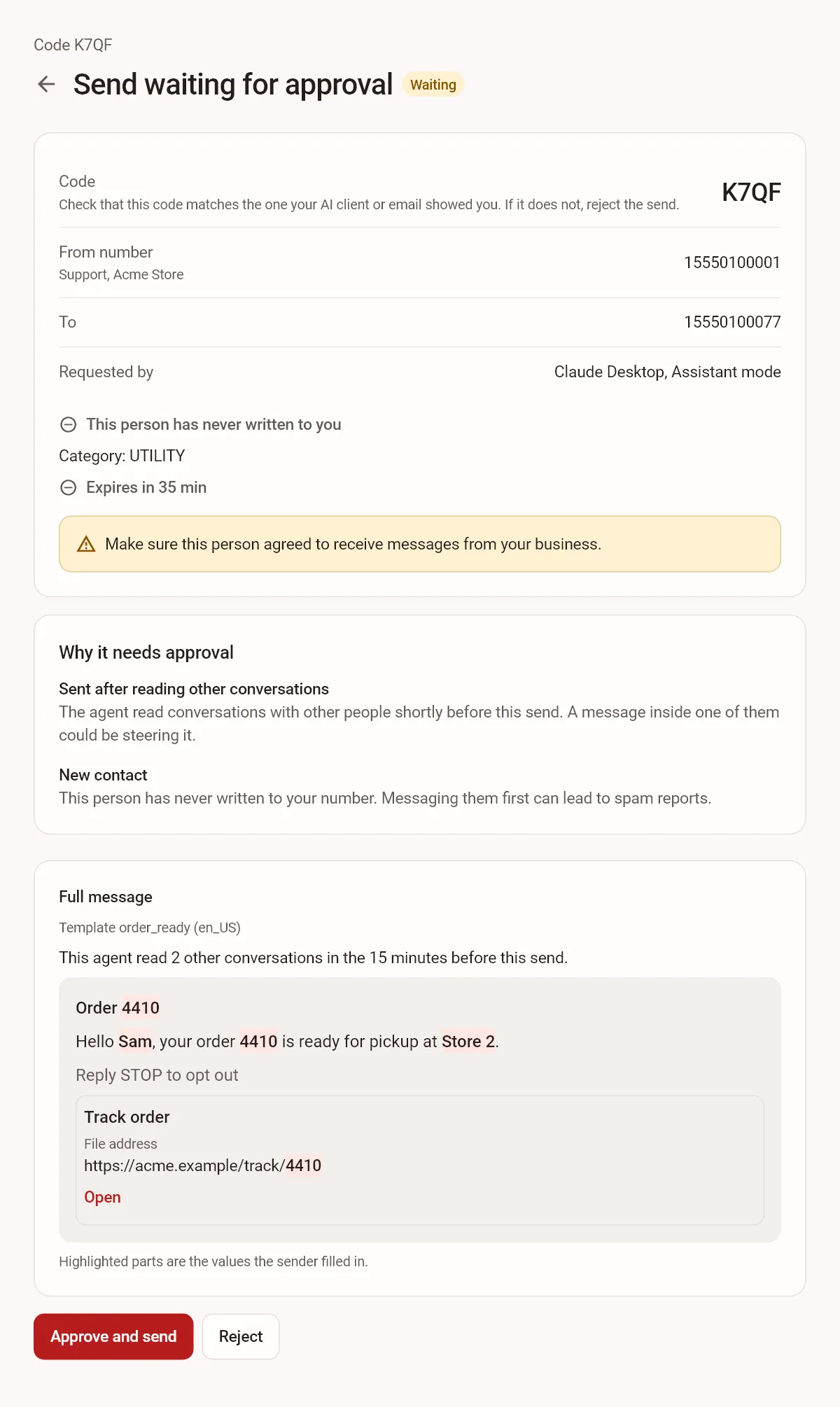
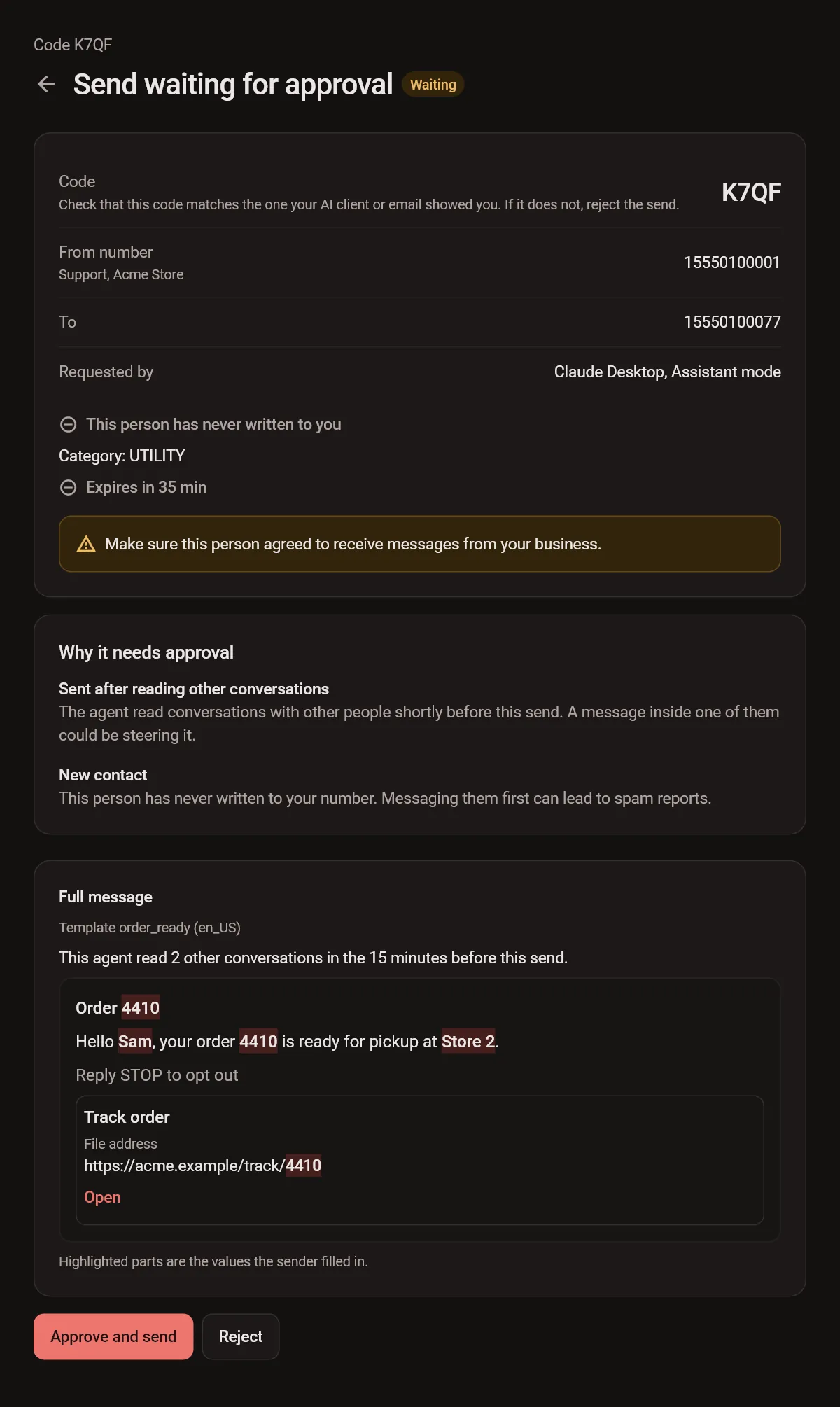
- Approve from the dashboard badge or the email, and check that the code matches the one the agent showed you. A look-alike link shown by a compromised agent leads nowhere, because the decision happens only inside ZapClaw.
- Nothing is hidden. The page shows the full message, wrapped and never cut, and highlights text that came from other conversations the agent read.
- Several at once, one by one. You can select held sends and decide on them together, but each one is shown in full and checked again when it is approved.
- A held send waits 60 minutes. After that it expires and nothing is sent.
Creating an AI agent key
- In the dashboard, open API keys and choose Create AI agent key.
- Name the key and pick its mode: Assistant for an AI assistant such as Claude, ChatGPT, Cursor or Codex with a person in the loop, or Autonomous for an automation such as n8n that runs with nobody watching.
- Choose what the key can do (read account details, read conversations, send messages) and which numbers it may use. Autonomous keys start without conversation reading.
- Copy the key, which is shown once, into an environment variable or a key file.
The guard protects the sends made through ZapClaw; an agent that can read conversations and also browse the web or run commands can carry what it read elsewhere, so give reading only to the agents that need it.
Questions
How is this different from Meta's own WhatsApp MCP server?
Meta's server is in beta, needs admin access to your Meta app and is described by Meta as meant for development and testing. ZapClaw's is built for the agents you run in production: guards on every send, approval in the dashboard, and the number kept in the WhatsApp Business app.
And the unofficial WhatsApp MCP servers?
Those servers drive WhatsApp Web, which goes against WhatsApp's terms and puts the number at risk of being banned. ZapClaw uses Meta's official Cloud API.
Does the MCP server have its own price?
No. Sends are billed like any other API send, and Meta bills its WhatsApp message fees to you directly. Every plan and price.
Which plans include it?
All of them, once access reaches your account: the server is in beta and opens to accounts gradually. Messages sent by an agent count toward your plan's message allowance, like any API send.
Can I offer a general-purpose AI assistant to the public with it?
No. The server is for the agents a business builds for its own customers. Since January 15, 2026, Meta lets providers of general-purpose AI assistants offer them on WhatsApp only where Meta is legally required to permit it, while other businesses keep the existing pricing.
Go further
- The API documentation, with every endpoint, error and code.
- The OpenAPI specification, which the tools call.
- The source code on GitHub.
- The package on npm.
- n8n on WhatsApp, when your agent is a flow.
- A webhook for your own AI, to receive every message.
Connect your agents to your WhatsApp number
Connect your number, create an AI agent key and add the server to your client.
Create account Read the documentation